Chat notetaking in Sculptor — highlights, thread notes, and Agentic handoff
By Sculptor team
Select text in coach replies, save colored highlights with your own context, review all notes in one sheet, and carry them into Agentic Strategy Pack runs.
- chat notes
- notetaking
- workspace
- strategy coaching
- highlights
- Agentic
- collaboration
Strategy coaching threads get long. The useful sentence is rarely the whole answer — it is one paragraph about ICP, one bullet on risk, or a single metric the coach surfaced. Chat notetaking lets you mark those moments inside assistant messages, add your own commentary, and find everything again from one Notes entry point in the conversation.
Why notes live on assistant messages
Notes attach to coach answers, not your prompts. That matches how you read a thread: you scan what the model said, mark what you will act on, and keep your interpretation beside the exact wording.
Highlights use the same color swatches as library document markup, so visual language stays consistent across chat and library.
Save a note from a selection
- Open Chat in a project and wait for an assistant message (not your own user bubble).
- Select a phrase or sentence with the mouse.
- Use the floating toolbar (same in local and organisation workspaces):
- Add note — opens a dialog with the selected excerpt, highlight color, and optional Your note field.
- Color swatches — one-click save: highlight only, no body (you can add text later from the notes sheet).
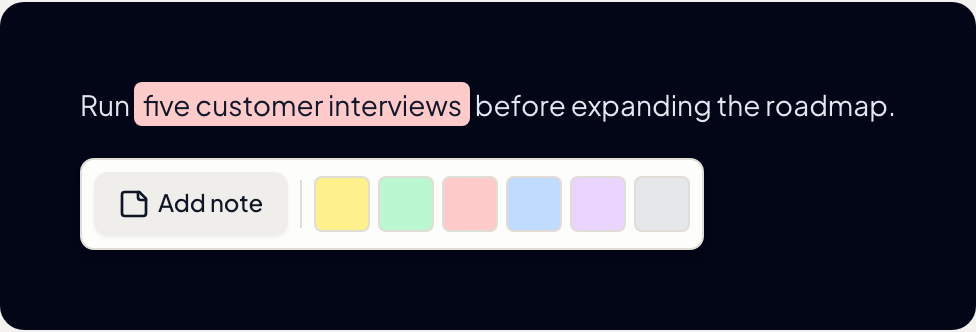
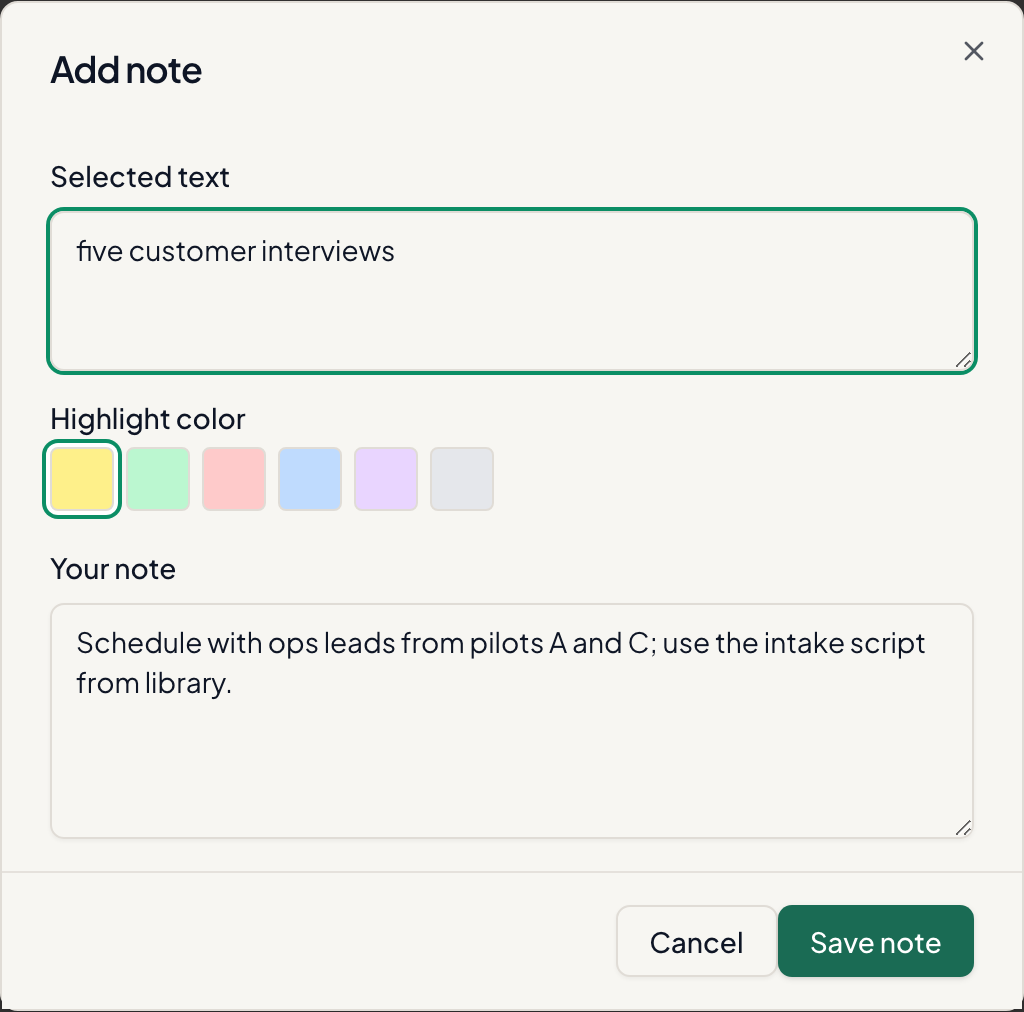
Only completed assistant messages support selection (not the message currently streaming).
Highlights in the thread
Saved excerpts render as inline highlights in the rendered markdown answer. Click a highlight to open a quick view: excerpt, your note body, color, Jump to message, edit, or delete.
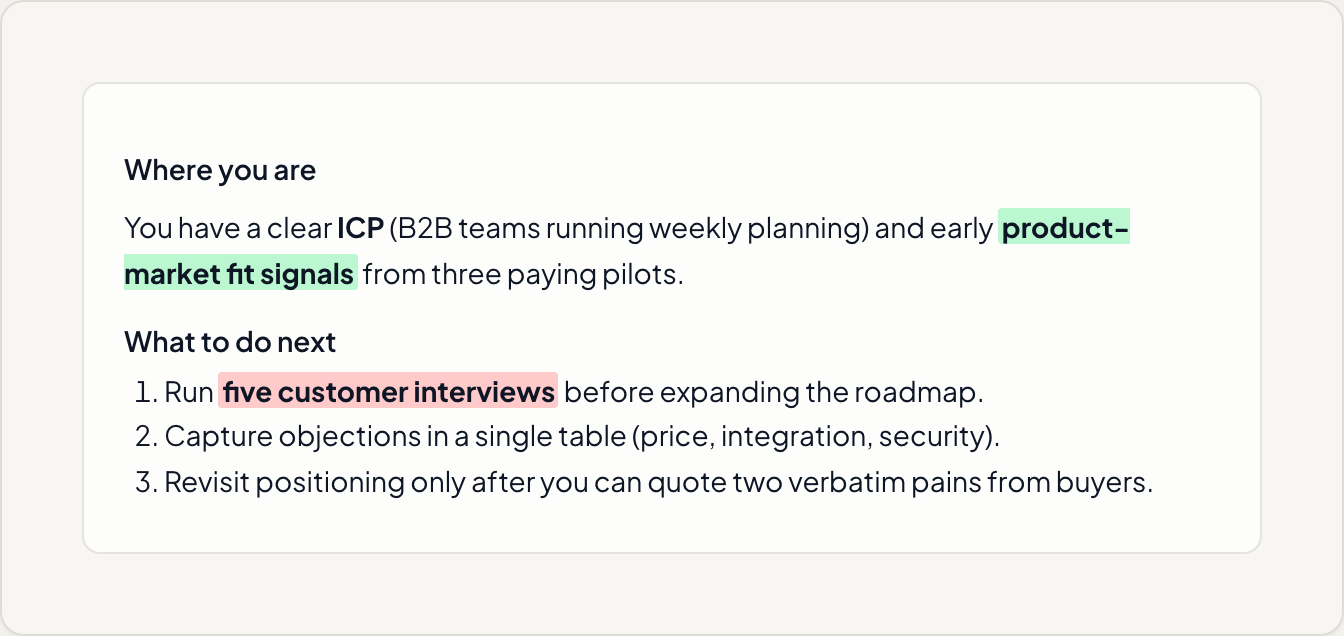
Highlights survive scrolling and re-open; they are reapplied when the message body is rendered.
Conversation notes sheet
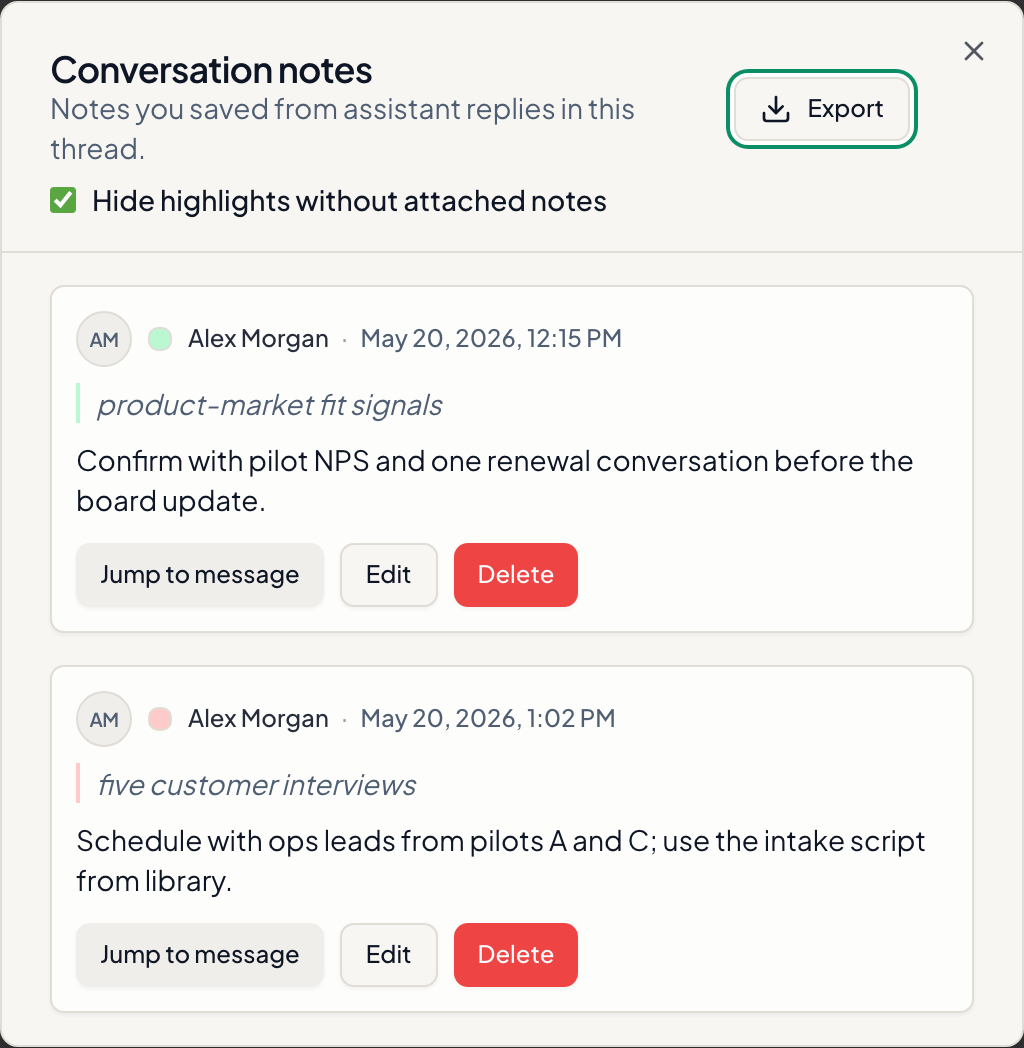
Use the Notes control in the chat chrome (badge shows how many notes exist in the thread). The sheet lists every note with:
- Author (you on local workspaces; display name on org projects)
- Highlight color
- Quoted excerpt and your note body
- Jump to message, Edit, Delete
- Export — download all notes in the thread as a single markdown file
Optional filter: Hide highlights without attached notes (color-only marks vs notes with written context).
Organisation workspaces vs local
| Workspace | Storage | Sharing |
|---|---|---|
| Organisation (cloud) | Postgres via org APIs | Notes are per user; tied to conversation and message IDs |
| Local | Dexie chatMessageNotes | Same UX; data stays in the browser profile |
API routes under /api/me/orgs/:orgId/... validate message ownership and reject notes on non-assistant messages.
Carry notes into Agentic
When a thread has notes, Continue to Agentic (composer tools menu) can start a Strategy Pack run with your chat context and note excerpts folded into the agent brief. The coach treats highlighted lines as signals you already flagged as important — useful when moving from exploratory chat to structured phases.
For how Agentic differs from Chat, see Fundamental AI terminology in Sculptor. For voice controls on the same project, see Coach persona and answer style.
Practical habits
- Highlight first, words later — swatch-save during the call; add bodies in the notes sheet after.
- One idea per note — smaller excerpts jump cleaner and export cleaner.
- Export before workshops — paste the markdown export into a facilitation doc or library import.
- Pair with project notes — project-level notes in Project details capture scope; message notes capture evidence inside the coaching dialogue.