AI on the combined strategy document — edit generated output with the selection toolbar
By Sculptor team
Select text in the Combined document (Results or Agentic), use the floating toolbar for highlights and AI simplify, expand, reformat, translate, or custom rewrite—using your workspace LLM settings.
- combined document
- strategy document
- AI editing
- selection toolbar
- Results
- Agentic
- library editor
- TipTap
Agentic runs and library merges produce a combined strategy document: one scrollable artefact built from phase outputs and project assets. It is not a static export—you can edit it in place, and when you select text, a floating toolbar appears with formatting, highlights, comments, and AI actions that run on your current provider and model.
What the combined document is
The combined view merges markdown sections from:
- Agentic Strategy Pack phase outputs (per run or scope)
- Project library assets you include via scope and filters
You get an outline, print/export, and a TipTap editor when the surface is editable. That is the right place to tighten wording after a long autonomous run—without copying everything into another tool.
Open it from Results in the workspace sidebar, or from Agentic when a run completes and shows the combined document pane.
The selection toolbar (local floating menu)
Select any text in the combined document body. A local toolbar anchors to your selection (not the top document chrome). It includes:
- Formatting — bold, italic, link, highlight colors, emoji
- Lists — bullet or numbered list toggles
- AI — simplify, expand, translate, reformat menu, Custom AI…
- Comments — add a comment thread on the selection (when comments are enabled for that document)
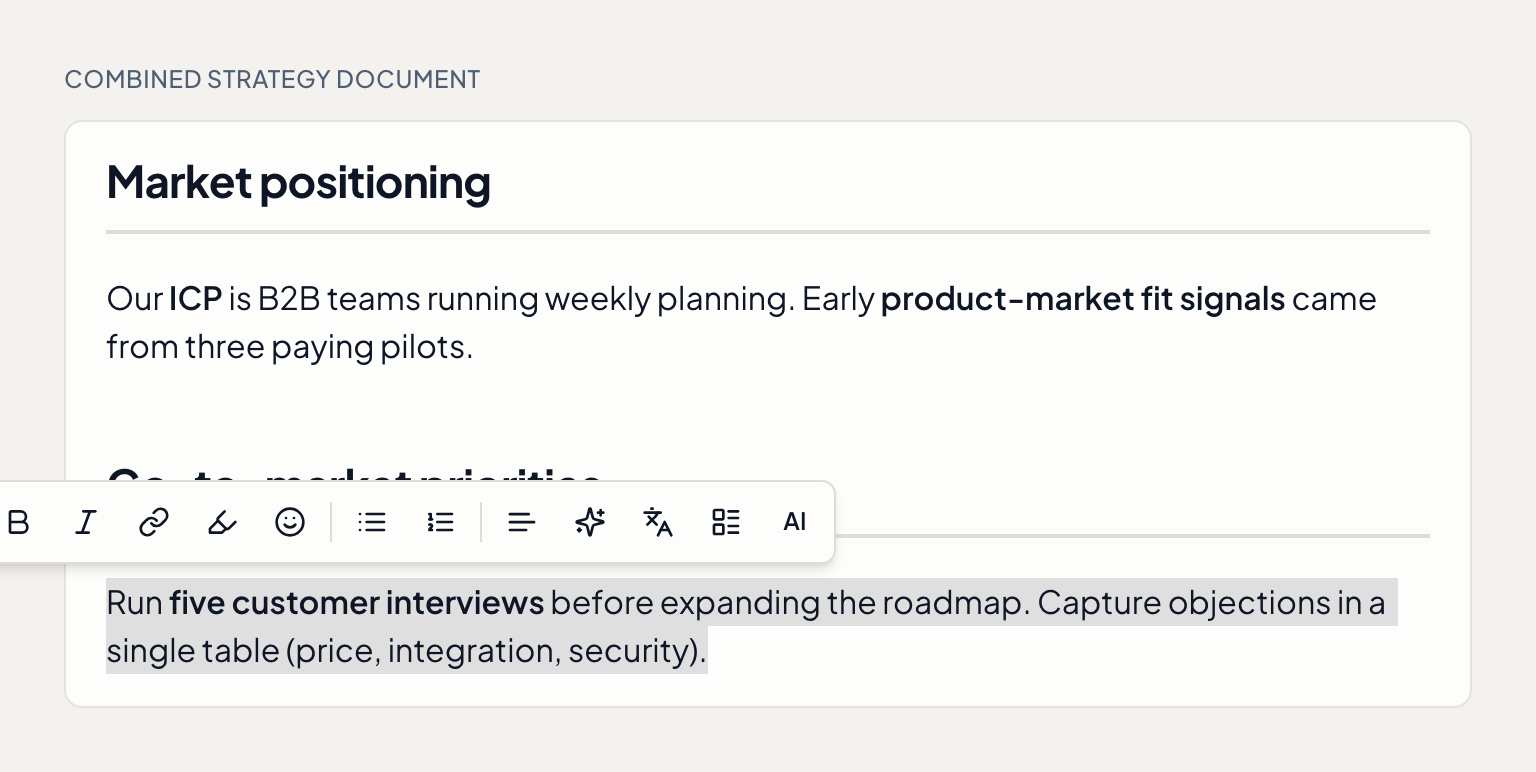

This is the same library document bubble menu used for editable markdown in the library preview, so behaviour stays consistent whether you edit one asset or the merged combined doc.
AI capabilities on selected text
Each AI action sends the selected passage to the configured LLM and replaces the selection with the model output (markdown-aware where needed).
| Action | Use when |
|---|---|
| Simplify selection | Dense agent output needs shorter, clearer prose |
| Expand selection | A bullet is too thin and needs substance |
| Translate selection | You want the passage in another coach locale language |
| AI reformat → bullets / numbered / table | Raw paragraphs should become structured lists or a table |
| Format as plain text | Strip list/table markup inside the selection |
| Custom AI… | You describe the rewrite (“make this board-ready”, “turn into risks + mitigations”) |
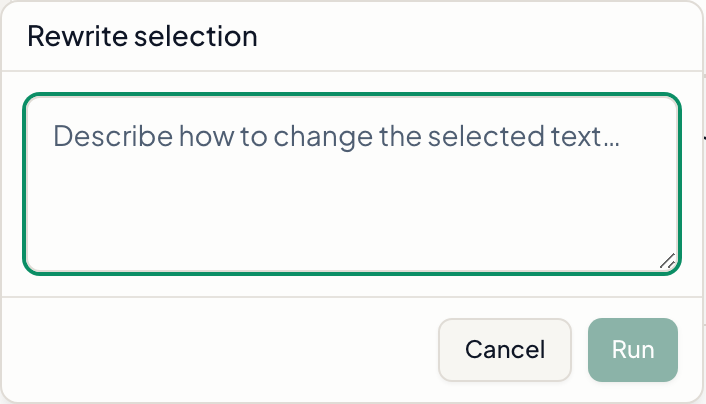
While a transform runs, the toolbar shows a Working… state so you do not double-trigger actions.
Provider note: transforms use the same client path as other document AI helpers—your Settings provider and model. On organisation workspaces, ensure the project/workspace AI configuration is runnable before relying on selection transforms in a workshop.
Highlights and comments vs chat notetaking
| Chat notes | Combined document toolbar | |
|---|---|---|
| Surface | Assistant messages in Chat | Editable combined / library markdown |
| Primary action | Save excerpt + optional note; highlight in thread | Edit text, AI rewrite, highlight, comment |
| Persistence | Per message note (org API or local Dexie) | Document revision / auto-combined asset body |
Use Chat notetaking while exploring with the coach; use the combined document toolbar when you are curating the generated strategy artefact.
Practical workflow
- Finish an Agentic run (or merge library assets) and open the combined document.
- Skim the outline; jump to weak sections.
- Select a paragraph → Simplify or Custom AI… until the tone matches your audience.
- Apply highlight colors on sentences you will cite in a workshop.
- Save so the auto-combined asset updates; use Download or Print / PDF when you are ready to share.
Pair with Coach persona and answer style for how new coach text is generated; use this toolbar to refine what is already on the page.